Setup & everyday use
Weft documentation
Everything you need to use GitHub Copilot CLI from your phone, with the work still running on your laptop.
Already connected? Go to everyday session controls, device health, or command reference. Contributing to Weft? Start with the developer workflow.
This is the documentation, not the connected app. Open the Weft web app to pair or work with a session.
Before you install
Weft has three parts. The Device Station is the weft start process on your laptop. The web app is the phone interface. A relay connects them over the internet; session traffic is encrypted between the paired endpoints.
- Laptop
- Windows with PowerShell, or macOS / Linux with Bash and
curl. Install Node.js 20 or newer and GitHub Copilot CLI. Sign in to Copilot with an account that can use it. - Phone
- A current browser with JavaScript, Web Crypto, and browser storage. Allow camera access when you scan a QR. No Weft account or app-store download is required.
- Network
- Both devices must reach the relay. Different Wi-Fi networks or phone mobile data are fine. Keep the laptop awake and the Device Station terminal open while working remotely.
You do not need to clone this repository, build Weft, create a Supabase account, or set up a dev tunnel for the default installation. Those are developer and relay-operator tasks.
Weft is not remote desktop software. It connects to Copilot sessions and offers a shared terminal on supported laptops, enabled by default with a configuration opt-out; it does not provide a general-purpose file browser. The hosted PWA is the supported phone distribution. Weft does not currently publish an Android APK.
Quickstart
Outcome: your phone can see the laptop in Weft and start a Copilot session. Run shell commands on the laptop, not in the phone's chat composer.
First, open copilot on the laptop and complete sign-in. Confirm it can start a session, then return to your normal shell. If Copilot does not work locally, fix that before pairing Weft.
1. Install on your laptop
Choose your operating system. These commands download and execute the installer; review the PowerShell script or Bash script first if your environment requires it.
irm https://useweft.netlify.app/install.ps1 | iexcurl -fsSL https://useweft.netlify.app/install.sh | bashThe default installer configures the hosted Supabase relay. Your phone learns its connection details from the QR; there are no relay keys to type into the app.
2. Start the Device Station
weft startYou should see: a Device Station status and pairing QR. Leave this terminal open. If weft is not found, open a new terminal and follow the command-not-found steps.
3. Pair from your phone
- Open useweft.netlify.app and choose Scan QR to pair.
- Allow camera access and scan the laptop QR. Keep the QR and its text payload private.
- Select the connected laptop. In Quick actions, choose Start Copilot to launch a session; register a project to make a working directory available in the picker.
You are connected when: the laptop shows online in the app and the session thread opens. Send a small prompt to confirm the round trip. Continue with starting, resuming, and controlling work.
For a home-screen shortcut, use the browser's Install app or Add to Home Screen action. Installation is optional; see the phone installation guide.
This laptop already trusted a phone? Reuse weft start for the same browser identity. For a replacement phone or cleared storage, follow replace the trusted phone instead of reinstalling.
Start & resume work
Keep weft start running on the laptop. The phone is a control surface for that laptop's Copilot work, not a separate place where your code executes.
Start a new session
- Open the connected laptop and choose Start Copilot under Quick actions.
- Choose a working directory from the registered projects and review the launch's permission settings.
- Confirm the launch and wait for its session thread to open. Send your prompt there.
If your folder is missing, register it on the laptop and refresh the project list. The phone does not create a missing laptop directory for you.
Resume instead of starting over
Choose Resume Copilot on the device. The Resume a session view loads available laptop sessions while connected. Choose a folder and session, review permissions, and confirm. Resume can include folders from the laptop's session history as well as registered projects.
If the phone already drives that session, the action opens it instead of starting a duplicate. If the laptop reports it is already attached elsewhere, review the warning before choosing Close it and resume anyway.
For a slow New or Resume launch, use its Try again action to reconnect to that launch. Repeatedly starting new launches can create duplicates.
Choose permissions deliberately
The launch form offers Default and Allow all. Default uses Copilot's normal permission behavior. Allow all lets tools, file paths, and URLs proceed without confirmation; enable it only when that level of access is intentional. These are permission choices, not interactive / plan / autopilot modes.
Work with a session
- Prompts
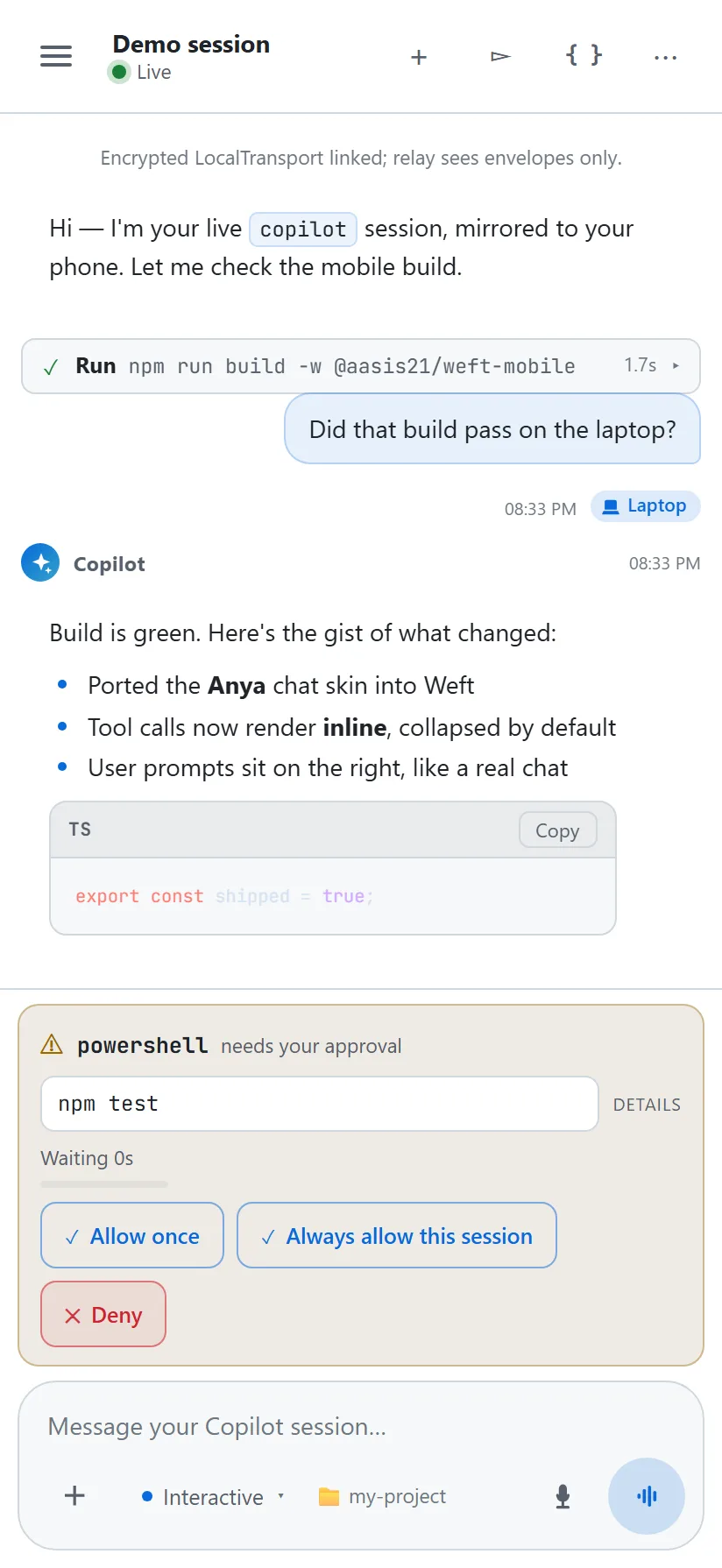
- Send requests from the composer and follow streamed replies and tool activity in the thread.
- Approvals
- Read and respond to the permission requests Copilot surfaces. A pending request can block progress until it is answered or the session ends; do not assume unattended requests expire automatically.
- Interrupt
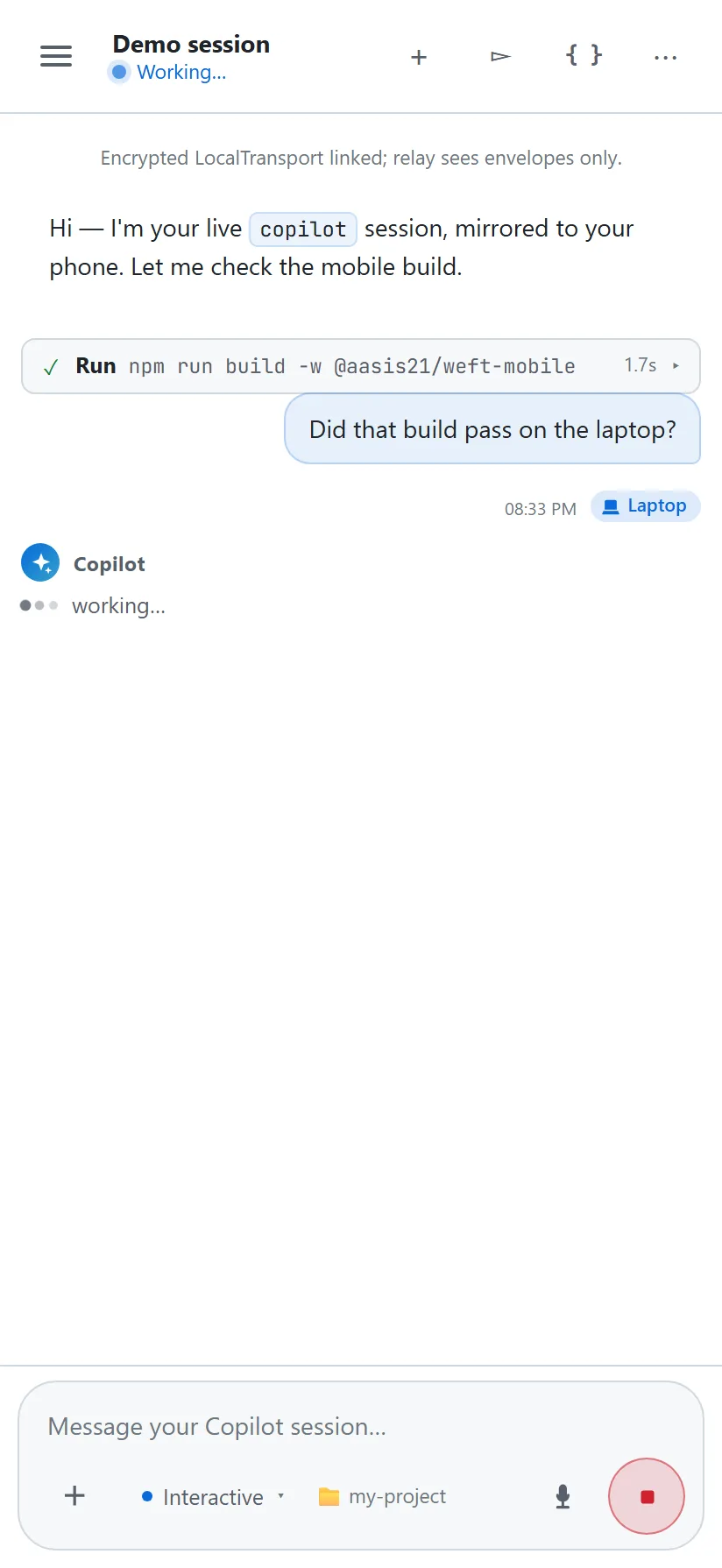
- Use the session's stop control to request that the current turn stop. Keep the laptop connection available while it processes the request.
- Modes
- Choose interactive, plan, or autopilot when supported by the Copilot host. A mode change is not a replacement for the session's permission policy.
- Slash commands
- Choose a supported command from the composer. Commands can run immediately, request text, or offer a curated option list. For
/model, Weft shows friendly model names while Copilot remains authoritative about whether the selection succeeds. - Explore
- Open Discover, Watch, Play, or Unwind from the session header. On a phone, swipe left from the right edge of Chat to enter Discover directly; one Back returns to the same conversation. The Copilot tile keeps current session activity visible while you explore.
Mirror one existing Copilot session
Enter /weft inside an active Copilot CLI session to mirror that session rather than launching one from Device Station. Scan its QR. If a paired station advertises it under Offered sessions, you can join that offer without scanning another QR.
A direct session pairing has its own fresh channel and key and ends with the session. Use /weft supabase or /weft devtunnel only when choosing a per-session relay override.
Find existing work
The device view groups work under Active Copilot sessions and Inactive Copilot sessions. A saved transcript is not proof of a live connection. Archived means the phone is not keeping a live socket for that session; reopen it to reconnect. Offline indicates a connection problem; use the recovery banner above the session composer.
The device's quick actions include Start Copilot, Resume Copilot, Clipboard, Keep Awake, and Open terminal. Clipboard transfers text only when requested; Keep Awake temporarily prevents system sleep. Each utility is enabled only when the connected laptop supports it.
Open a shared terminal
On a supported Windows laptop, run weft start, then choose Open terminal on the phone. Terminal access is enabled by default. The first open creates one real shell and a visible laptop attach window. Opening again reconnects to that same shell, not a second terminal.
Tap Keyboard to type at the real shell prompt. Enter submits; Up and Down use shell history or navigate an interactive program. Special keys stay visible below the terminal. For longer commands, expand Write / paste and choose Run when ready. Clipboard paste opens that editor for review, never automatic execution.
Use Take control when the laptop owns input. While the phone has control, the shared grid fits its display and adjusts around the phone keyboard. Details holds the starting directory, shell information, and Reattach. Leaving the page keeps the same shell running on the laptop.
Leaving the phone page keeps the shell running while Station remains running. Reconnect restores available screen state and bounded scrollback without repeating commands. Confirmed Close terminal, closing its laptop window, or stopping Station ends the terminal.
Direct shell access is enabled by default. To disable it, set "terminal": {"enabled": false} in ~/.weft/weft.config.json, preserving your other settings, and restart Station. It runs with your local account's permissions, without Copilot approval prompts; a workspace is not a sandbox. Terminal contents are excluded from Weft diagnostic logs, but your shell and programs can maintain their own history. A separate file browser is not provided.
See terminal controls, access boundaries, and troubleshooting.
More detail: advanced usage on GitHub.
Manage workspaces
The device page calls registered folders Copilot workspaces; the CLI calls each registration a project. Both refer to a name and an existing folder on the laptop. Registration makes that folder available for starting work; it does not upload, copy, or create the folder.
Add a working directory
Replace the example path with your own. Quote paths containing spaces. --default makes this project the default choice.
weft add-project my-app "C:\Projects\my-app" --default
weft list-projectsweft add-project my-app "$HOME/projects/my-app" --default
weft list-projectsYou should see: the project in weft list-projects. In the phone's device menu, choose Refresh projects if the picker has not updated.
The Copilot workspaces card shows names, folder paths, and the default marker. It initially shows up to four folders; choose Show all workspaces to expand a longer list. To launch work, use Start Copilot and choose the folder there.
Rename the device or change a project
- Default folder
weft set-default my-appselects an already registered project.- Moved folder
- Run
weft add-projectagain with the same name and the new existing path. This replaces that registration. - Remove project
weft remove-project my-appremoves the registration, not the folder or its files.- Device name
weft set-name "Work laptop"gives the laptop a recognizable label. Restart the station or mirrored session for the phone to see the new name.
Projects are launch locations, not a security sandbox. Copilot's permissions and your organization policies still govern what a session may do.
Read device health
Open a connected laptop in the device list. System health describes that laptop, not the phone or a single Copilot session. An online connection and a monitoring-capable Device Station are required.
What the card tells you
- CPU
- A sampled utilization percentage, not a history chart or a guarantee that Copilot is busy.
- Memory
- Used memory as a percentage and used / total bytes.
- Disk
- Used / total space for the monitored volume, not a sum across every attached disk.
- Battery
- Charge percentage and charging state when available. A missing battery tile is normal on a desktop or unsupported platform.
- Uptime
- How long the laptop has been running, not the age of the Copilot session.
Running now initially shows up to five reported applications, with window counts and memory when available. Use Show all to expand a longer list. It is not a complete process inventory and does not expose window titles, document names, executable paths, or app-control actions.
Freshness and missing details
- Updated just now means a snapshot arrived recently. Update delayed means the displayed sample is stale; do not read it as a current measurement.
- Monitoring runs while the device view is active and the app is visible. It pauses when the view closes or the app goes into the background, then resumes when you return.
- Available details depend on the laptop's OS and hardware. Application lists and battery collection currently use Windows APIs; their absence on macOS or Linux is not automatically a pairing failure.
- If the card asks you to update, update and restart Device Station. If the laptop is offline, restore the connection first.
The live card is not a background monitoring service or a historical performance chart. Snapshot messages also appear in the bounded local diagnostic log; see what the log contains.
Keep Weft updated
The laptop installation and phone web app update separately. An ordinary update does not require a clean installation or a new pairing.
weft version
weft update --check
weft update- Check:
weft versionshows the installed version;weft update --checkcompares it with the hosted release without installing. - Update the laptop:
weft updatedownloads and verifies the code bundles and usage skill against the published SHA-256 manifest. It preserves configuration, projects, logs, and persistent pairing material under~/.weft/. - Restart: stop and restart Device Station or Copilot CLI so the running process uses the new code.
- Refresh the phone: reload the web app, or close and reopen the installed PWA. Do not clear its storage just to refresh the UI.
Compare phone and laptop versions
Open Settings > About in the phone app for its build and the version reported by each paired laptop. A mismatch is a useful diagnostic signal, not proof that the protocol is incompatible. Update both ends before investigating further.
GitHub releases · Changelog · Hosted release manifest
A commit on GitHub is not necessarily the hosted release. Installed laptops update from the hosted manifest; the docs site and web app also have separate deployments.
Reconnect or replace a phone
Weft trusts a browser's saved pairing identity, not the physical phone's name. A different browser or cleared site storage can make the same phone a new identity.
| Your situation | What to do |
|---|---|
| Same phone and saved browser data | Restart normally; do not rotate the pairing. |
| New phone, different browser, or cleared storage | Replace the trusted phone and scan the new QR. |
| Lost phone or exposed QR | Stop and revoke the old connection. |
| Only the network or relay seems broken | Check connectivity first; deleting local data does not fix an unreachable relay. |
Reconnect without pairing again
Run weft start and reopen Weft in the same browser profile or installed PWA. Device Station pairing is persistent by default, so an already-paired phone can reconnect after the initial QR expires. Keep both devices online.
Replace the trusted phone
- Stop the old Device Station with Ctrl + C.
- Run the command below on the laptop.
- On the intended phone/browser, open the scanner and scan the newly printed QR.
weft start --new-deviceResult: the previously trusted phone identity can no longer reconnect to the new station identity. This is not an additional-phone invitation, and it does not restore deleted phone-local history. --rotate-pairing is an alias for --new-device.
An unclaimed QR grant expires after 10 minutes and belongs to the first phone key that successfully claims it. Keep QR images and copied payloads private.
Lost phone or exposed QR
Stop the old station first, then run weft rotate-pairing. This replaces the stored identity without starting the station. When ready, run weft start and pair your intended phone. Rotating the file alone does not stop a process still holding the old keys.
For a direct /weft connection, end the old Copilot session. Device Station rotation is not a blanket revocation of separate session pairings.
Optional: pair fresh on every start
weft set-pairing ephemeral makes subsequent station starts create a new channel and key, so you scan each time. Use weft set-pairing persistent for the normal reconnecting workflow. Direct /weft pairings are always per-session.
For the exchange and key lifetimes, see the pairing protocol on GitHub.
Find & fix a problem
Start with the symptom. Check the running station and connection before rotating a pairing or deleting data.
| What you see | Start here |
|---|---|
The shell cannot find weft | Check installation and PATH. |
| The camera does not open or the QR will not scan | Check the browser and QR. |
| Laptop stays offline or reconnecting | Check the station and relay. |
| Same phone stopped working after clearing data | Replace the missing pairing identity. |
| A launch is slow or a session is waiting | Check launch status and approvals. |
| Health tiles are missing or delayed | Understand monitoring availability. |
| The log does not show every event | Understand diagnostic scope and retention. |
| No alert while the app is closed | Check notification limitations. |
The terminal cannot find weft
- Open a new terminal after installing so it picks up PATH changes.
- Confirm
node --versionandcopilot --versionwork. - Read the installer's completion message and PATH instructions. Re-run it if code installation failed.
Do not delete ~/.weft/: it holds your configuration and pairing identity, not the missing executable's PATH entry.
The camera or QR scan does not work
Open the HTTPS app directly in a supported browser, not an embedded preview. Allow camera access in the browser/site settings and retry the scanner. On keyboard-and-mouse devices, you can use the paste-payload option instead. An unclaimed QR expires after 10 minutes. If the QR is expired or already claimed by a different phone identity, use the new-device recovery flow.
The phone stays offline or reconnecting
- Keep the laptop awake and confirm the
weft startterminal is still running. - Run
weft show-transport. For Dev Tunnel, also runweft devtunnel status; Supabase does not require a local tunnel process. - Read the station error and use the phone's Trouble connecting? connectivity test. Network policy can block HTTPS/WebSocket traffic even when ordinary browsing works.
- Compare versions using
weft update --checkand Settings > About. Restart after an update.
If the browser lost its saved keys, refreshing an old QR cannot restore them. Follow phone replacement; otherwise preserve the existing pairing while diagnosing the connection.
A session or launch appears stuck
Check for a pending permission request in the phone thread or laptop terminal. Weft does not automatically approve it or add a decision timeout. For a slow New / Resume operation, use its Try again action rather than starting duplicates. If mode switching is unsupported by the Copilot host, switch in the terminal or update the host.
No notification while the app is closed
Notification permission and delivery depend on the browser and operating system. Do not rely on a backgrounded or killed app to wake for an approval. Reopen the app to inspect pending requests; keep the laptop terminal available when reliable attention is required.
Understand the event log
No: the log is not a complete record of every event. It is a bounded diagnostic view of recent channel traffic, separate from your conversation transcript.
| View | What it shows |
|---|---|
| Device event log | Open the laptop's overflow menu and choose Event log. This is Device Station traffic: project lists, launch coordination, monitoring requests, and device heartbeats. Copilot conversation events use separate session channels. |
| Session event log | The selected Copilot session's exchanged messages, such as prompts, streamed activity, and permission requests. It is not the laptop-wide device log. |
| Health snapshots | control.device_snapshot appears alongside monitoring requests and device heartbeats. Consecutive events of the same heartbeat or snapshot subtype and direction are replaced by the latest one. |
| Retention | The device view keeps up to 100 recent entries in memory. Session logs keep up to 75; the shared persistence layer also saves/restores at most 75 per device or session channel. Old entries fall off and large payloads are compacted. |
Use event names and timestamps to follow a recent request/response. Expand an entry for its payload; use Identifiers in the device log for connection identifiers. This is troubleshooting context, not an exhaustive audit trail.
Payloads can contain private content. Review and redact before sharing; compaction is not a promise that a raw log is safe to publish.
Diagnostic logs exclude terminal requests, output, and reconnect screen state. A shared terminal is not a persisted Weft transcript; the shell or invoked programs can still keep their own history.
Report a problem safely
Open a GitHub issue with the smallest reproducible example. Include:
- Phone OS/browser, laptop OS, and the versions of Copilot and both Weft endpoints.
- Transport, whether this is a new pairing or a reconnect, and whether browser storage changed.
- Steps, expected result, actual result, and the approximate time of the failure.
- Sanitized error text or a relevant event name, not a full raw log dump.
Do not include QR payloads, pairing keys, tokens, private source, or transcripts. Use the private security reporting instructions for sensitive problems.
Remove Weft or local data
Remove ~/.copilot/extensions/weft/ and ~/.copilot/skills/weft-how-to-use/ to uninstall laptop code. Remove ~/.weft/ only if you also intend to delete configuration, registered projects, logs, and persistent pairing keys.
On the phone, remove a session to delete its cached transcript. Clear site/app data to delete local pairings and history. Uninstalling a PWA shortcut alone may leave browser site data behind. Clearing data is destructive and requires pairing again.
Privacy & local data
Trust the phone as an interface to your laptop. A paired phone can send prompts and permission decisions to Copilot. Protect the QR, browser profile, and laptop; encryption does not make unsafe actions safe.
Weft uses ECDH (P-256), HKDF-SHA256, and AES-256-GCM to encrypt session traffic between the endpoints. The relay forwards ciphertext without session-content storage or key escrow. It can still observe connection metadata, and the phone must trust the code delivered by the web-app host.
| Location | What it handles |
|---|---|
| Phone / PWA | Plaintext session content, locally cached transcripts and diagnostic logs, device/session metadata, preferences, and pairing private keys. Diagnostic payloads can include device snapshots. Protect access to the device and browser profile. |
| Laptop | Copilot session content and capabilities; installed Weft code; configuration, logs, and persistent identity under ~/.weft/. |
| Relay | Encrypted traffic. Providers can observe connection metadata such as IP addresses, timing, channel identifiers, traffic volume, and operational logs. |
| Web hosting | The app provider delivers code trusted on the phone. The app loads Google Fonts, whose provider may receive request metadata. This documentation uses local assets and system fonts. |
Know the boundaries
- A person who copies an unclaimed QR can race the intended phone to claim it. Keep pairing screens and payloads out of screenshots and issue reports.
- A trusted phone can act through the connected Copilot session. Encryption does not protect against a compromised phone, laptop, or delivered client code.
- Encryption does not guarantee availability. A relay or network can delay, drop, or block traffic.
- Supabase RLS currently gates the Weft namespace, not individual users or channels. A client-safe key is not a secret authentication factor.
- Local transcripts and pairing keys are not a cloud backup. Deleting app storage cannot be undone by reconnecting to the relay.
- Weft relays Copilot's permission requests; it does not replace your organization's policies or make unreviewed actions safe.
Read the technical security model, privacy notice, hosted-service terms, and security reporting policy.
Command reference
Run weft commands in your laptop shell. Run /weft only inside Copilot CLI. Neither belongs in the phone's prompt composer.
<value> means required; [option] means optional. Replace placeholders without typing the brackets. For alternatives separated by |, choose one value.
Connection & pairing
| Laptop shell command | Purpose |
|---|---|
weft start | Start Device Station; reuse persistent phone trust by default. |
weft start --new-device | Replace phone trust and start with a fresh QR. Stop the old station first. |
weft start --help | Show station options without starting. |
weft set-pairing <persistent|ephemeral> | Choose whether subsequent station starts reuse the pairing identity. |
weft rotate-pairing | Replace the stored identity without starting a station. |
Inside Copilot: /weft mirrors the current session. /weft supabase and /weft devtunnel choose a relay for that session only. See direct session pairing.
Projects & device identity
| Laptop shell command | Purpose |
|---|---|
weft add-project <name> <path> [--default] | Add or replace a named registration for an existing folder. |
weft list-projects | List registered folders and the default. |
weft set-default <name> | Select an already registered project. |
weft remove-project <name> | Remove a registration, not its files. |
weft set-name <name> | Name the laptop. Restart its station/session to publish the new label. |
weft show-name | Show the configured label or OS hostname. |
Updates, relays & installation
| Laptop shell command | Purpose |
|---|---|
weft version | Show the installed version. |
weft update --check | Compare with the hosted version without installing. |
weft update | Verify and install hosted code; preserve laptop configuration and pairing data. |
weft show-transport | Show the configured relay and its configuration location. |
weft set-transport <supabase|devtunnel> | Choose the relay for subsequent connections. |
weft set-transport clear | Clear the choice, not the saved Supabase details. Select a transport again before pairing. |
weft devtunnel <start|status|stop> | Operate the shared dev-tunnel relay. Stopping it disconnects its users. |
weft install [--from <dir>] [--skill <file>] | Install code bundles and the usage skill; developer/source installation option. |
weft clean-install [--yes] | Destructive: delete installed code and ~/.weft/ data, then reinstall. --yes skips confirmation. |
weft help | Show the installed CLI's complete usage. |
Use update for new code and pairing recovery for a new phone. A clean installation is not routine maintenance.
Choose or host a relay
A relay carries encrypted traffic; it is not where Copilot executes or your transcript is backed up. Keep the default unless you have a reason to operate your own infrastructure.
| Choice | You need | Best fit |
|---|---|---|
| Hosted Supabase | The default installation. | Normal use with the least setup. |
| Microsoft Dev Tunnel | The devtunnel CLI and a supported sign-in. | Operate a shared relay from your laptop. |
| Your Supabase project | A project, Realtime Authorization policies, quotas, and ongoing operations. | Control the relay infrastructure yourself. |
Use the configured Supabase relay
weft set-transport supabase selects the connection details already saved by the installer. It does not create a Supabase project or replace a custom project's settings with hosted defaults.
The transport choice lives in ~/.weft/weft.config.json; the URL and client-safe anon key live in ~/.weft/supabase.json. These are separate from installed code. The transport is not configured through a project .env file.
Use Microsoft Dev Tunnel
weft set-transport devtunnel
weft start
Device Station reuses a healthy shared relay or provisions one, prompting for login when needed. It manages a relay it starts, but does not shut down one owned by another terminal.
For direct /weft pairing, or a relay that remains available across individual station restarts, run weft devtunnel start in a separate terminal and keep that terminal open. /weft does not provision the relay itself.
Use weft devtunnel status to inspect it. weft devtunnel stop stops the shared relay and disrupts connections using it.
Use your own Supabase project
- Create a Supabase project with Realtime Authorization enabled.
- Apply the repository's Realtime RLS migrations. Private joins fail without these policies.
- Set quotas and rate limits. The policy gates the
private:weft:*namespace, not individual users or channels. - Write your project details to
~/.weft/supabase.json, then chooseweft set-transport supabase.
{
  "url": "https://YOUR_PROJECT.supabase.co",
  "anonKey": "YOUR_CLIENT_SAFE_ANON_KEY"
}
Never use a service-role key. The phone receives these connection details in the QR. Use only a client-safe anon/publishable key, apply RLS, and keep private credentials out of source control.
After changing relay settings, stop and restart the station and scan its new QR so the phone learns the new connection details. Relay selection does not remove the need to protect both endpoints.
Read the hosting guide and Supabase operator instructions on GitHub.
Build & develop
You do not need a source build for normal use. For development, clone the repository and use Node.js 20+ and npm. Shared contracts, the laptop extension, and the phone app are npm workspaces.
git clone https://github.com/aasis21/weft.git
cd weft
npm ci --workspaces --include-workspace-root
npm test -w @aasis21/weft-shared
node extension/harness/harness.mjs --auto
npm run build -w @aasis21/weft-extension
npm run build -w @aasis21/weft-mobile
The harness exercises a simulated phone and local transport without a Supabase project. To explore the phone UI locally:
cd mobile
npm run dev
Open the printed URL and choose Try the demo. A successful demo does not prove real cross-device pairing or relay connectivity.
Install your source build
From the repository root, run .\setup.ps1 on Windows or ./setup.sh on macOS/Linux. This installs code into your personal Copilot extensions directory. Copilot provides its SDK to the extension at runtime.
Repository map
shared/- Message contracts, pairing, encryption, and transports used by both endpoints.
extension/- Copilot extension, standalone CLI / Device Station, and the local harness.
mobile/- React / Vite phone app and Capacitor development shell. Netlify publishes
mobile/dist. docs/- This static documentation site and deeper Markdown references. No client-side Markdown renderer or app build is required to read the site.
Full procedures: developer setup and deployment guide and contributing guide.
Protocol concepts
These concepts help when working on the extension or app. For exact fields and examples, follow the rendered source references below.
Pairing handshake
The QR includes the laptop public key, channel, relay descriptor, pairing grant, and expiry. The phone sends its public key and fresh nonce in pair.hello. The laptop returns a fresh pair.challenge. The phone proves possession of its private key and grant in encrypted pair.proof; the laptop validates that proof and returns an encrypted pair.ack.
ECDH and HKDF derive a challenge-scoped session key. The public handshake values are not secrets; the bearer proof and acknowledgement are encrypted. See the handshake API and exchange diagram.
Event envelope
Application messages share an envelope with eventType, eventSubtype, channelId, sessionId, senderId, senderName, msg, and ts. Message-specific fields stay inside msg.
The secure channel encrypts the complete envelope. An authenticated stream ID and increasing sequence number reject duplicate, stale-stream, and non-monotonic messages. Pairing bootstrap events run before this channel exists. See the event catalog and implementation map.
Runtime modes
The primary session-mode path is session.rpc.mode.set({ mode }). Do not confuse it with session.send(...) delivery mode, which controls queueing rather than interactive / plan / autopilot behavior. Older hosts may not support mode RPC; slash-command fallback is best-effort, not guaranteed.
Plan exit is a separate session-event/UI-RPC approval flow, not an ordinary tool permission callback. The runtime-mode implementation notes include API details and the limits requiring real-host testing.
Guide directory
The handbook is organized by task. Technical references open as rendered Markdown on GitHub when you need implementation or operator detail.
- Get connected: prerequisites, quickstart, and project registration.
- Keep working: session controls, device health, and updates.
- Recover safely: phone trust, symptom guide, event logs, and local data.
- Go deeper: commands, relays, development, and protocol concepts.
| Guide | In this handbook | Source reference |
|---|---|---|
| Setup | Install & connect; develop locally | setup.md on GitHub |
| Advanced use | Sessions; commands | advanced.md on GitHub |
| Pairing | Connect & recover; handshake | pairing.md on GitHub |
| Hosting | Select or operate a relay | hosting.md on GitHub |
| Releases | Update & compare versions | releases.md on GitHub |
| Shared terminal | Open, reconnect, and close | terminal.md on GitHub |
| Security | Trust & storage boundaries | security.md on GitHub |
| Modes | Runtime mode switching | mode-switching.md on GitHub |
| Protocol | Event envelope | event-envelope.md on GitHub |